Exercise: Brush
Reference
While code can be compelling in creating dynamic animations, the introduction of an human-computer interface into graphics is one of the great benefits of "creative coding". To demonstrate the very basics of this potential, we'll make a simple "brush" which responds to our mouse movement.
Mouse coordinates
First, create a new p5.js (I named mine "brush"). Then let’s start by setting some basic parameters for our brush:
function setup() {
  createCanvas(windowWidth, windowHeight);
  background(255);
  strokeWeight(2);
}

function draw() {
  line(pmouseX, pmouseY, mouseX, mouseY);
}
Some changes from our previous sketches... In this case we're setting the canvas width and height to that of the window. This is nice to create a larger canvas, but if you change your window size the canvas size will stay the same.
More importantly however is the line in the draw() function. Here we are passing line the coordinates from the previous frame's mouse position (pmouseX, pmouseY), and the current coordinates (mouseX, mouseY) using the stroke defined in the setup() function. By simply moving our mouse, we can make a brush!
Try adding another line of code in the function that swaps the x, and y mouse coordinates to see what happens to your sketch:
function draw() {
  line(pmouseX, pmouseY, mouseX, mouseY);
  line(pmouseY, pmouseX, mouseY, mouseX);
}
This is the most simple brush I can think of... however, it's easy to build on the brush to increase interactivity! For instance, you can use different "events" to trigger your brush. Let's make a more traditional brush by adding code to check if the mouse is "pressed":
function setup() {
  createCanvas(windowWidth, windowHeight);
  background(255);
  strokeWeight(2);
}

function draw() {
  if (mouseIsPressed) {
    line(pmouseX, pmouseY, mouseX, mouseY);
  }
}
The if statement inside of the in the draw() function. In this case there is a "conditional" statement (if) that when is true runs the code inside of the curly brackets ({}). This basic functionality, to me, is the MVP of a brush in a design tool.
Next let's try drawing with something other than a stroke.
function setup() {
  createCanvas(windowWidth, windowHeight);
  background(255);
  stroke(0);
  strokeWeight(2);
  noFill();
}

function draw() {
  if (mouseIsPressed) {
    rect(mouseX - 5, mouseY - 5, 10, 10);
  }
}
Here we are drawing a rectangle every frame, and centering it to the mouse position. If we wanted, we can add velocity to the rectangle size by using a variable and calculating the distance the mouse has moved between frames:
function draw() {
  if (mouseIsPressed) {
    let v = dist(mouseX, mouseY, pmouseX, pmouseY);
    rect(mouseX - v/2, mouseY - v/2, v, v);
  }
}
In this case we are using v to measure the distance the mouse has moved between frames, and setting the width and the height of the rectangle to match.
I hope these simple brushes help show the potential of the introducing events, and user interactivity in your sketches. To further show this, try some of the following:
Draw with an image:
function preload() {
  brushImg = loadImage('brush.png'); // replace 'brush.png' with your actual file name
}

function setup() {
  createCanvas(windowWidth, windowHeight);
  background(255);
  imageMode(CENTER); // so the brush centers under the cursor
}

function draw() {
  if (mouseIsPressed) {
    image(brushImg, mouseX, mouseY, 120, 80); // adjust the width and height to the proper aspect ratio
  }
}
Creating a brush that uses an array, a variable which holds many values that can be accessed dynamically to change color on every mouse press.
let colors = ['#000000', '#e91e63', '#3f51b5', '#4caf50', '#ff9800'];
let ci = 0;

function setup() {
  createCanvas(windowWidth, windowHeight);
  background(255);
  strokeWeight(2);
  stroke(colors[ci]);
}

function draw() {
  if (mouseIsPressed) {
    line(pmouseX, pmouseY, mouseX, mouseY);
  }
}

function mouseClicked() {
  ci = (ci + 1) % colors.length;
  stroke(colors[ci]);
}
Here colors stores different hex color values, and ci refers to the "index" or the position in the array. The first value of the array is 0. In the mouseClicked() function, ci (the position in the array) gets updated and the stroke color uses that value.
Or, try this rainbow brush:
let rainbow = ['#ff0000','#ff7f00','#ffff00','#00ff00','#0000ff','#4b0082','#8f00ff'];
let offsets = [-6, -4, -2, 0, 2, 4, 6];

function setup() {
  createCanvas(windowWidth, windowHeight);
  background(255);
  strokeWeight(2);
}

function draw() {
  if (mouseIsPressed) {

    // direction of motion
    let dx = mouseX - pmouseX;
    let dy = mouseY - pmouseY;
    // perpendicular unit vector (-dy, dx)
    let mag = sqrt(dx*dx + dy*dy);
    let px = 0, py = 0;
    if (mag > 0) {
      px = -dy / mag;
      py =  dx / mag;
    }

    for (let i = 0; i < rainbow.length; i++) {
      stroke(rainbow[i]);
      let off = offsets[i];
      let x1 = pmouseX + px * off;
      let y1 = pmouseY + py * off;
      let x2 =  mouseX + px * off;
      let y2 =  mouseY + py * off;
      line(x1, y1, x2, y2);
    }
  }
}
Which uses a bit more complex math to create the arc of movement when making a curve.
Try adjusting your brush to your liking, and "signing" your name. Then add this code to the bottom of your doc:
function keyPressed() {
  if (key === 's') {
    save('myCanvas.png');
  }
}
And save an image of your signature, then add it to this week's google doc.
Extra Credit:
Try adding code to your brush to use sound as an input (note, this sketch requires p5.sound which is added when you create a project using the VS Code plugin):
let mic, micOn = false, btn;

function setup() {
  createCanvas(windowWidth, windowHeight);
  background(255);
  stroke(0);
  strokeWeight(2);

  mic = new p5.AudioIn();
  btn = createButton('Mic: OFF');
  btn.position(10, 10);
  btn.mousePressed(toggleMic);
}

function draw() {
  if (mouseIsPressed) {
    let level = micOn ? mic.getLevel() : 0;
    let w = 2 + level * 160; // base 2px, add size from sound
    strokeWeight(w);
    line(pmouseX, pmouseY, mouseX, mouseY);
  }
}

function toggleMic() {
  if (!micOn) {
    getAudioContext().resume();
    mic.start();
    micOn = true;
    btn.html('Mic: ON');
  } else {
    mic.stop();
    micOn = false;
    btn.html('Mic: OFF');
  }
}
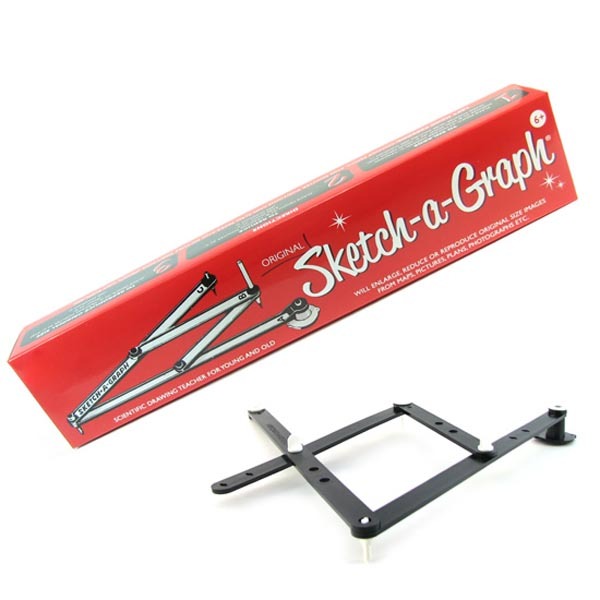
Sketch-a-graph
Due Oct 14 (1 day)
Topics: Events