Exercise: Font Path
Reference
p5.js can be used for typesetting, but compared to programs like InDesign, Figma, or pure HTML / CSS p5.js is limited. There are many reasons for this, but for me what stands out is you’re plotting the absolute position of text on a fixed (or more rigid) canvas than in a more fluid environment like the previously mentioned software / environments.
Instead, there is a much greater potential for more graphic text treatments using P5 when compared to other tools. In this exercise we’ll look at one such example by loading a font, then breaking it into points, and manipulating its appearance.
Before we do that, let’s do the most basic text manipulation.
function setup() {
  createCanvas(400, 200);
  textFont("Georgia"); // system font
  textSize(32);
  text("hello", 50, 100);
}
Here we are loading a system font in P5. System fonts are fonts that are pre-installed on your computer. This would allow you to have your sketch load on other computers (that have the same system fonts), without having to load a font file. For instance, I could change "Geogia" to "Helvetica", but beyond adjusting the placement, size, etc of the font, you can’t do more significant manipulation of text. This is because the browser does NOT expose glyph curves for system fonts. This is for security and performance reasons.
In this exercise, let’s load our own font, and manipulate its appearance in a graphic way!
1. Use a custom font
Create a new p5.js sketch. I’ll name the folder for my sketch fonts.
Next, you will need to load your own font – let’s find a font at Velvetyne type foundry, an open source foundry, to use. Download a font, and copy the .ttf or .otf file, into your sketch’s folder.
I'll use Avara in this example:
https://velvetyne.fr/fonts/avara/
By loading our own fonts, we have access to manipulate the fonts' points, outlines, and strokes, which allows you to manipulate their appearance. Unzip your downloaded font, and copy the .ttf or .otf file into the same folder as your sketch.js file.
Now that we’ve copied the font into our sketch directory, let’s load our typeface:
let font;

function preload() {
  font = loadFont("Avara-Bold.otf");
}

function setup() {
  createCanvas(windowWidth, windowHeight);
  noStroke();
  textFont(font);
  textSize(200);
  textAlign(CENTER, CENTER);
}

function draw() {
  background(20);
  fill(240);
  text("HELLO", width/2, height/2);
}
2. Add points
Now we can manipulate the paths of the strokes by breaking it into points:
let font;

function preload() {
  font = loadFont("Avara-Bold.otf");
}

function setup(){
  createCanvas(windowWidth, windowHeight);
  noStroke();
}

function draw(){
  background(20);
  fill(240);

  const txt = "Hello";
  const size = 200;

  // measures the text box and centers on the page
  const b = font.textBounds(txt, 0, 0, size);
  const x = width/2  - (b.w/2 + b.x);
  const y = height/2 + (b.h/2 - (b.y - b.y));

  const pts = font.textToPoints(txt, x, y, size, {
    sampleFactor: 0.3, // how points the dots should be
    simplifyThreshold: 0  // raise the threshold to make the shapes more simple
  });

  // run a for loop to draw dots
  for (const p of pts) circle(p.x, p.y, 10);
}
In this example, sampleFactor will adjust how many points along the stroke to create. And simplifyThreshold will decide how many points to drop from the path. Try experimenting with them to see how it adjusts the appearance of the lettering.
3. Adjust the “points” unit
Similar to our “brush” exercise, rather than drawing with just circles, we can also use shapes, or images. Try adjusting the circle to instead load an image:
// preload an image
function preload() {
  font = loadFont("Avara-Bold.otf");
  fontImg = loadImage('chiikawa.png');
}

// change the circle to the image
for (const p of pts) image(fontImg, p.x, p.y, 40, 40);
If you adjust the sampleFactor, you can see each image more clearly, or create a more dense shape.
4. Connect the points
Or, you can trace the rendering of the shape via a stroke, by creating a shape from the letterforms and replacing the For loop with a shape:
beginShape();
for (const p of pts) {
  vertex(p.x, p.y);
}
endShape();
Here is the full code to try:
let font;

function preload() {
  font = loadFont("Avara-Bold.otf");
}

function setup() {
  createCanvas(windowWidth, windowHeight);
  noFill();
}

function draw() {
  background(20);
  stroke(240);
  strokeWeight(2);

  const txt = "hello";
  const size = 200;

  const b = font.textBounds(txt, 0, 0, size);
  const x = width/2  - (b.w/2 + b.x);
  const y = height/2 + (b.h/2 - (b.y - b.y));

  const pts = font.textToPoints(txt, x, y, size, {
    sampleFactor: 0.02,
    simplifyThreshold: 0
  });

  // make a path through the shape
  beginShape();
  for (const p of pts) {
    vertex(p.x, p.y);
  }
  endShape()
}
5. Add interaction
Of course, you can add interaction to this. In this case we’ll add a mouse click to adjust the sample sampleFactor:
let font;
let currentSample = 0.10;
let targetSample  = 0.10;
const SAMPLE_MIN  = 0.01
const SAMPLE_MAX  = 0.1;

function preload() {
  font = loadFont("Avara-Bold.otf"); // put the font next to your HTML
}

function setup() {
  createCanvas(windowWidth, windowHeight);
  noStroke();
}

function draw() {
  background('white');
  noFill();
  strokeWeight(1);
  stroke('black');

  const txt  = "hello";
  const size = 200;

  // lerp ease currentSample toward targetSample (smooth animation)
  currentSample = lerp(currentSample, targetSample, 0.1);

  const b = font.textBounds(txt, 0, 0, size);
  const x = width/2  - (b.w/2 + b.x);
  const y = height/2 + (b.h/2 - (b.y - b.y));

  const pts = font.textToPoints(txt, x, y, size, {
    sampleFactor: currentSample,
    simplifyThreshold: 0
    });

    for (const p of pts) circle(p.x, p.y, 30);
  }

  function mousePressed() {
   // pick a new random target within your preferred range
   targetSample = random(SAMPLE_MIN, SAMPLE_MAX);
 }

 function windowResized() {
  resizeCanvas(windowWidth, windowHeight);
}
In this case we are using lerp:
currentSample = lerp(currentSample, targetSample, 0.1);Which means "linear interpolation" – a way to smoothly move a value from one number toward another number over time. It takes three values the start(current value), end(target value), and amt(how much to move). This creates a smooth animation as the sketch "interpolates" between the start and end values.
Once you have tred loading your own font, and testing these different interactions, post a screenshot or short video (screen-recording or gif) of your favorite experiment manipulating a typeface to the class google document.
Extra Credit
Experiment with sorting the coordinates of the paths of a typeface. Rather than following the original contour path of the typeface, When you sort by another dimension – such as x position, y position, or an input such as mouse coordinates – the original topological order of the text outline is replaced to create new potentials. In turn, allowing you to see the typeface differently.
Simple example:
let font;
const MESSAGE = "Hello";
const FONT_FILE = "Avara-Bold.otf";
const FONT_SIZE = 180;
const SAMPLE_FACTOR = 0.16;
const SIMPLIFY = 0.0;

function preload(){ font = loadFont(FONT_FILE); }

function setup(){
  createCanvas(windowWidth, windowHeight);
  noLoop();
  background(14);

  const b = font.textBounds(MESSAGE, 0, 0, FONT_SIZE);
  const x = width/2  - (b.w/2 + b.x);
  const y = height/2 + (b.h/2 - (b.y - b.y));

  const pts = font.textToPoints(MESSAGE, x, y, FONT_SIZE, {
    sampleFactor: SAMPLE_FACTOR,
    simplifyThreshold: SIMPLIFY
  });

  // try switch a.x - b.x to a.y - b.y
  const arr = pts.slice().sort((a,b)=> a.x - b.x);

  stroke(232); noFill();
  beginShape();
  for (const p of arr) vertex(p.x, p.y);
  endShape();

  fill(200); noStroke(); textSize(12);
  text(`sorted by X • points=${arr.length}`, 10, height-12);
}
Complex example:
let font, pts = [];
const TXT = "Hello World";
const SIZE = 120;

function preload(){ font = loadFont("Avara-Bold.otf"); }

function setup(){
  createCanvas(windowWidth, windowHeight);
  const b = font.textBounds(TXT, 0, 0, SIZE);
  const x = width/2  - (b.w/2 + b.x);
  const y = height/2 + (b.h/2 - (b.y - b.y));
  pts = font.textToPoints(TXT, x, y, SIZE, { sampleFactor: 0.08, simplifyThreshold: 0 });
}

function draw(){
  background(14);
  const arr = pts.slice().sort((a,b) =>
  dist(a.x,a.y,mouseX,mouseY) - dist(b.x,b.y,mouseX,mouseY)
  );

  stroke(232); noFill();
  beginShape();
  for (const p of arr) vertex(p.x, p.y);
  endShape();
}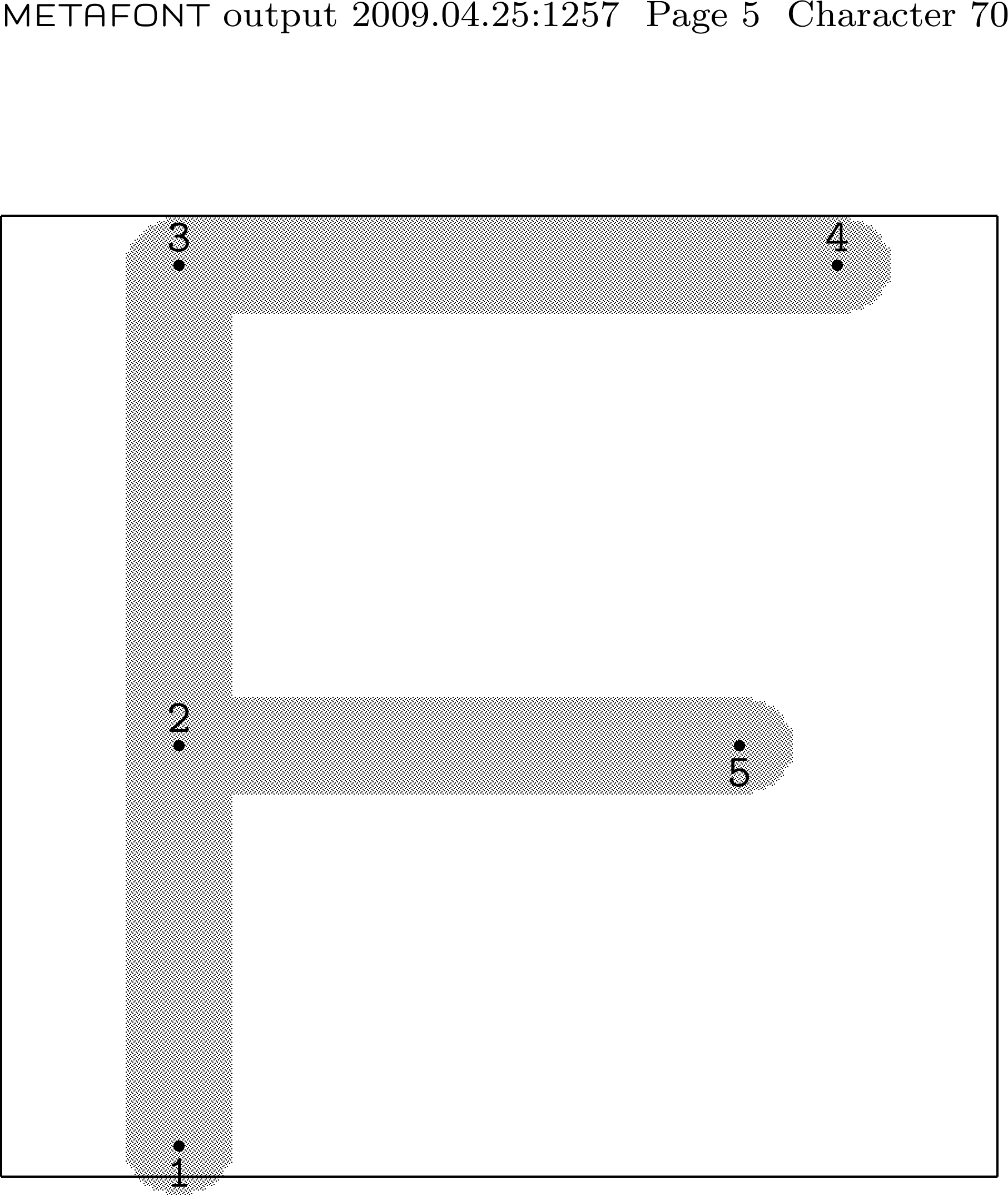
Metafont Logo
Due Nov 11 (1 day)
Topics: Font Paths