Exercise: Drawing Mickey
Resources:
In this exercise we'll learn the very basics of p5.js. Setting up a project, and drawing shapes on the canvas. To do this, we'll each draw our own Mickey Mouse in the style of Damien Hirst on a 600 × 800px canvas.
This exercise should be done in pairs, in which you will "Pair Program":
Pair programming is a software development technique in which two programmers work together at one workstation. One, the driver, writes code while the other, the observer or navigator, reviews each line of code as it is typed in. The two programmers switch roles frequently.
While reviewing, the observer also considers the "strategic" direction of the work, coming up with ideas for improvements and likely future problems to address. This is intended to free the driver to focus all of their attention on the "tactical" aspects of completing the current task, using the observer as a safety net and guide.
After one of you has acted as the "driver", switch roles so you can each finish your own code sketch.
Setting up p5.js
First, open VS Code (or if you haven't already installed VS Code download and install it), and follow the steps here:
p5.js: Setting Up Your Environment
to setup your first p5.js project. In a p5.js project you'll have:
p5.jsandp5.sound.jsfiles (the p5 library – in the VS Code package these are usually "minified" versions of these files where any extra spaces are removed, these files are harder for humans to read, but load faster)sketch.jsfile where you are writing your p5 codestyle.cssfile which adjusts the HTML page which renders your codeindex.htmlfile where your code is rendered on a canvas
When you run the "Go Live" command in VS Code on your index.html file it will render your sketch.js code in the webpage that it loads. This is running on a server from your computer that will automatically update when you make changes in your project.
loading a server in VS code
Note: You can run multiple servers using this feature, which will open at different "ports". By default the server will be started at port : 5500.
setup() and draw()
A p5.js sketch will typically have two functions by default, a setup() and draw() function. setup() will define the defaults of the sketch – such as the HTML canvas element where your drawing will take place. Within this function, you can define attributes which won't change over time.
The draw() function gets repeatedly called – once every second – and can be used to create animations and interactivity within your sketch. For instance, if you wanted an element to move around the canvas, you would incrementally move it by adjusting its position every time the draw() function is called.
Since draw() executes the code within the brackets over and over again, shapes are drawn on the canvas like layers. Code that appears first will be drawn first, and code that appears further down in draw() will be drawn after. This is why we must set fill(), stroke(), and textSize() before we add shapes or text to the canvas. p5.js needs to know the color or size of shapes and text before they are drawn. This also allows for overlapping shapes and can sometimes hide shapes behind others! Be sure to check the x- and y-coordinates of your shapes to see if they are behind other shapes. – p5.js: Get Started
Drawing shapes
- First, let's update our
setup()function to change the canvas size:
function setup() {
  createCanvas(600, 800);
}
Here we are setting the width of the canvas to 600px and height to 800. If you look in your browser, the canvas size now should have automatically updated (most likely this should be at: http://localhost:5500/)
We can then update the setup() function with other constant attributes such as the backround color of the canvas.
function setup() {
  createCanvas(600, 800);
  background(40);
}
The value for background in this case is a greyscale value between 0 and 255. It will also accept rgb, hex code and string values ('blue', 'green', 'brown', etc.) from a set of defined colors.
- Next, let's draw our first shape.
The most basic shape is a point:
point(20, 20);It has 2 parameters, the x and y coordinate. These coordinates are determined from the top left of the canvas.
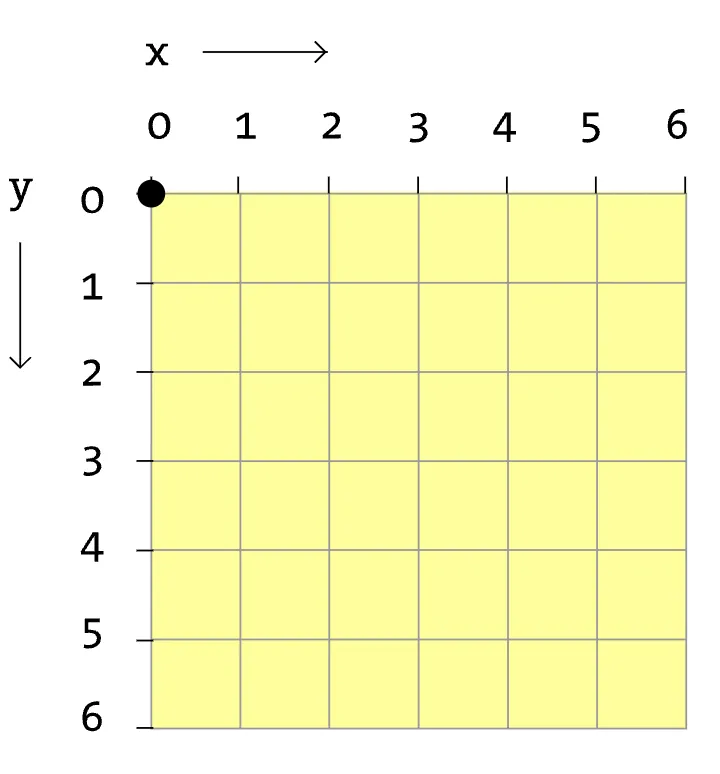
By default a point is 1px in size. You can set the strokeWeight(); to a higher value to more easily see the point.
If you want to draw a path, you would use the following syntax:
line(30, 20, 85, 75);Which defines the (x1, y1, x2, y2) starting and stopping points of the line.
More complex shapes will typically follow a similar syntax where you define the x and y coordinates of the shape, or the coordinates and size of the shape.
Here you can see the shapes specification which lists the shapes you can draw using p5.js. For instance, here's how you can draw a trangle:
function setup() {

  createCanvas(600, 800);
  background(40);

  triangle(80, 225, 108, 110, 136, 225);

}
Each pair of values signifies an x/y coordinate of the shape.
You can also draw polygons with multiple points by using beginShape() and endShape() where you define many vertex within the shape. Try adding the following code to your sketch inside of the :
function setup() {

  createCanvas(600, 800);
  background(40);

  beginShape();
  vertex(109, 20);
  vertex(196, 20);
  vertex(196, 67);
  vertex(151, 67);
  vertex(151, 74);
  vertex(179, 74);
  vertex(179, 83);
  vertex(146, 83);
  vertex(146, 102);
  vertex(162, 102);
  vertex(162, 117);
  vertex(153, 117);
  vertex(153, 109);
  vertex(145, 109);
  vertex(121, 164);
  vertex(121, 196);
  vertex(128, 196);
  vertex(128, 204);
  vertex(121, 204);
  vertex(110, 204);
  vertex(110, 179);
  vertex(93, 171);
  vertex(75, 187);
  vertex(75, 196);
  vertex(83, 196);
  vertex(83, 205);
  vertex(67, 205);
  vertex(67, 172);
  vertex(25, 132);
  vertex(25, 83);
  vertex(50, 117);
  vertex(65, 117);
  vertex(84, 108);
  vertex(109, 20);
  endShape();

}- Using the Damien Hirst example, draw a series of circles to make your own Mickey.
Code in p5.js is read in order from top to bottom, so when you set the fill() to one color, it will override the previous fill() settings. For instance, the following code should give you Mickey's ears and face on the canvas:
function setup() {

  createCanvas(600, 800);
  background(40);

  // ears
  fill('black');
  circle(293,86,136);
  circle(191,188,136);

  //face
  fill('#F4E2C2');
  circle(341,230,170);

}
Within the canvas, continue creating circles to draw your own Mickey Mouse in the style of Damien Hirst.
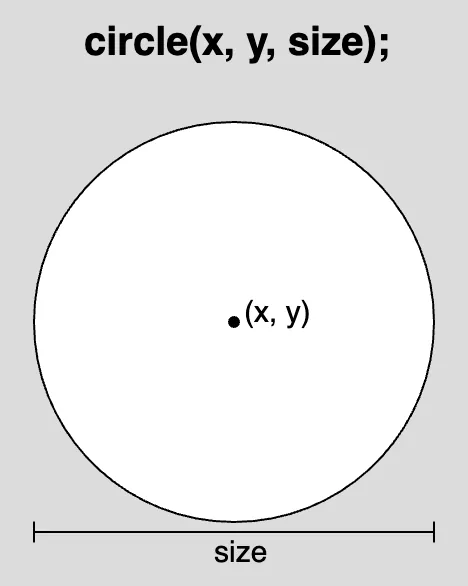
The syntax of circles are: x, y, volume.
Feel free to play with colors, scale, shapes, position, etc. to make your Mickey to express your preference.
Here is a full example Mickey in which I've moved the Mickey design into the draw() function. This is so there can be simple interaction with the sketch. For instance try uncommenting the background(mouseX/2.35); code (remove the // in that line), to see how the mouse's x-position can make your sketch dynamic.
Example Mickey
function setup() {
  createCanvas(600, 800);
  background(200);
  noStroke();
}

function draw() {

  // background(mouseX/2.35);

  // ears
  fill('black');
  circle(293,86,136);
  circle(191,188,136);

  //face
  fill('#F4E2C2');
  circle(341,230,170);

  //eyes
  fill('black');
  circle(366,205,44);
  circle(417,205,44);

  //nose
  circle(468,244,66);

  //mouth
  fill('red');
  circle(334,315,54);

  //body
  circle(384,443,194);

  //buttons
  fill('black');
  circle(463,405,48);
  circle(413,424,48);

  //feet
  fill('yellow');
  circle(169,612,180);
  circle(423,679,180);
}
Extra Credit
Create a new sketch with your favorite characters using ellipses or other simple shapes. Some characters to consider... Anpanman, Chiigawa, Choonsik, Apeach, etc.
To itterate on your design, you can either...
Create an entirely new sketch by following the directions from setting up your environment:
Click on View on the top toolbar and select Command Palette.
Type Create p5.js Project in the search bar and select the folder on your machine in which you would like to save your project.
And creating a new folder for your extra credit project.
Or, by renaming your sketch.js file and updating the:
<script src="sketch.js"></script>to point to the new file within your <body></body> tag.
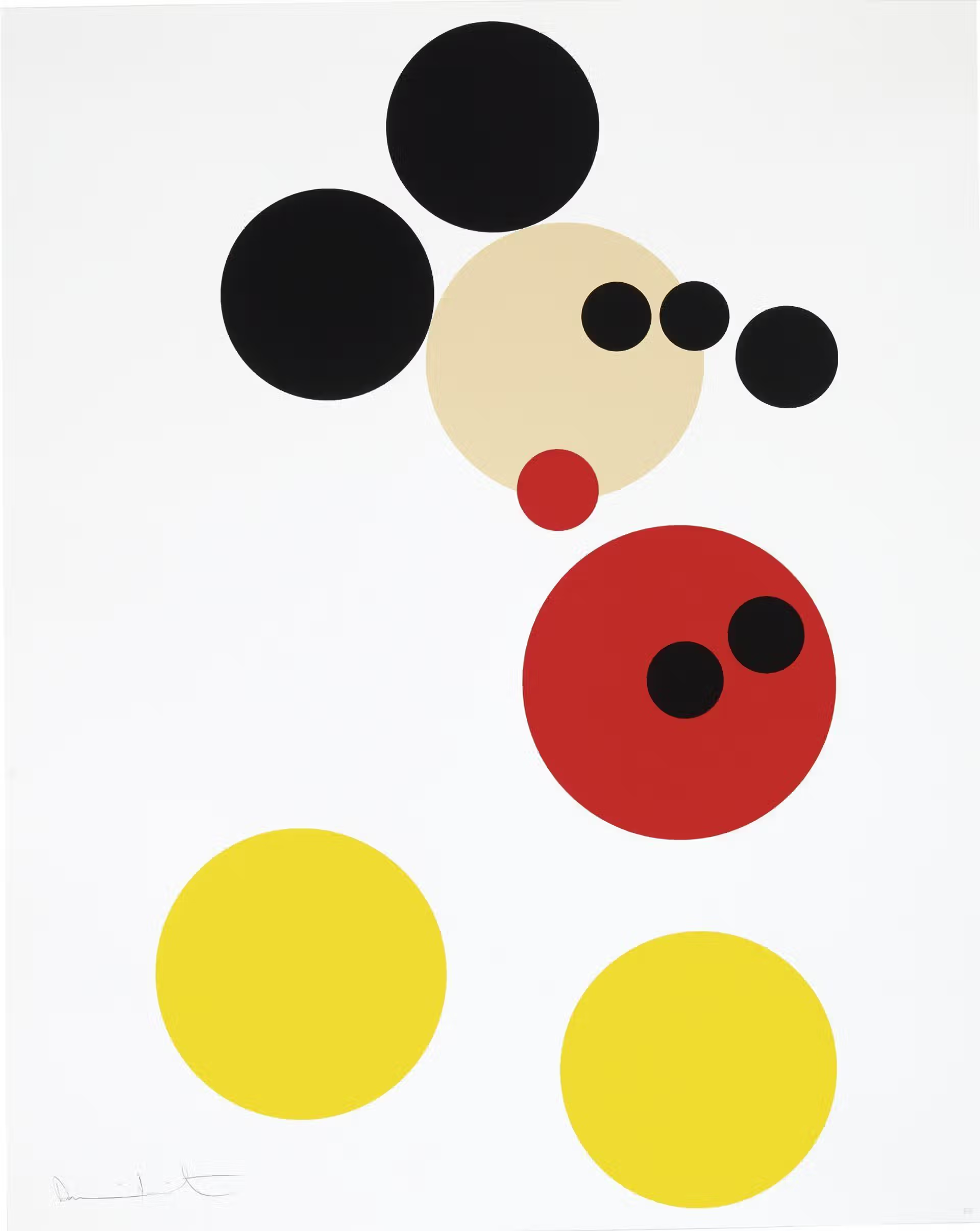
Mickey Mouse Illustration by Damien Hirst
Due Sep 9 (1 day)
Topics: Setting Up p5, 2d shapes